Your Android phone can load the Garrie app by clicking on the link below.
Download and install
This contains an Android .APK install file. Using your Android device, click on this and install the file. You will be asked to trust the install file and it will be scanned to ensure there are no harmful files.
The latest version is 2.1.1
Using the App
Once installed it will request permission to record audio – this is so you can give it voice commands. That’s it, the default device is now ready to use!
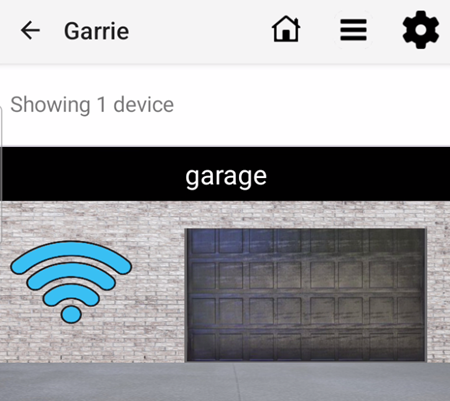
It creates a device called garage with the default address, garage.local. If you have changed this go to the devices page.
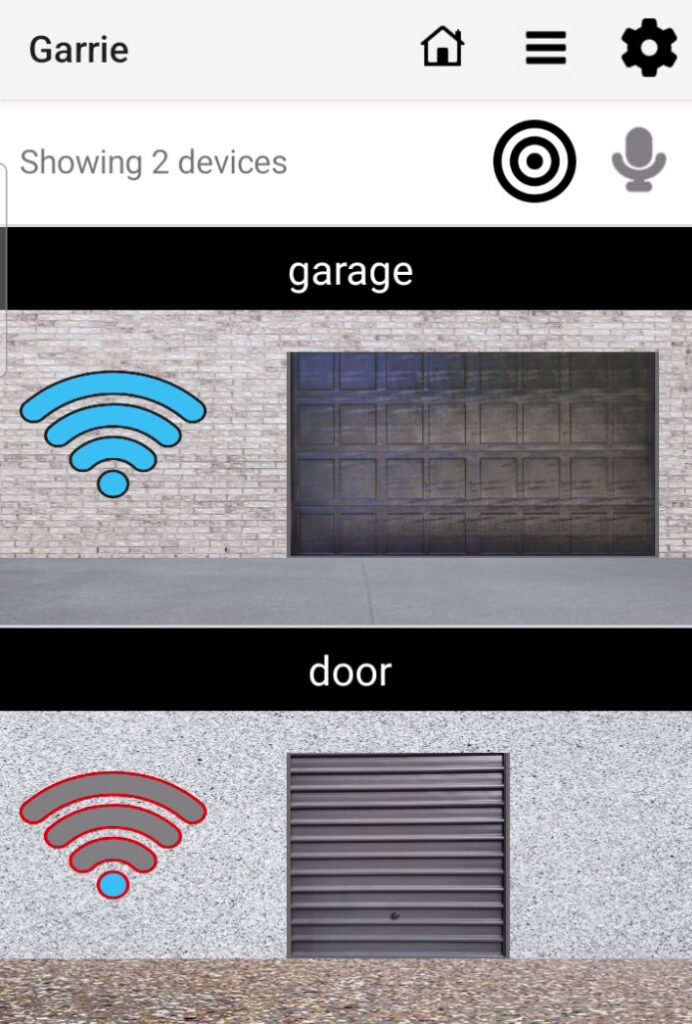
This page shows your device and a Wi-Fi signal button on the left. It will be blue if the device is in range, grey if not.
Pressing this button will open or close your garage. It will function like your remote does, so if your remote stops the door when pressed, so will this. You can test the function by pressing on the garage door. It will show door opening without actually opening the door.
Features
- Voice – Your device can be voice activated by a keyword, ‘garrie’ then the device ‘garage’ for example. See settings and devices page.
- Proximity – A device can be set to open when you approach, this will depend on your Wi-Fi signal strength as to when your phone picks up your home Wi-Fi again.
- Multiple Devices – you can control many devices with Garrie. Simply add them in the devices page, make sure they are unique and the address is set correctly.
Settings
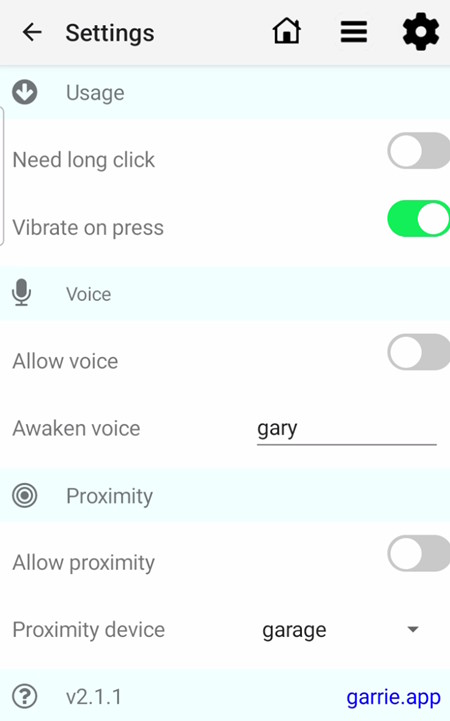
These settings allow you to customise features across all devices. Voice and proximity can be enabled or disabled – changing the home menu features shown.
This page allows you to change the overall app settings like voice and proximity.
Usage
Need long click
When set on you need to home all buttons for a while. This stops accidental presses.
Vibrate on press
Your phone can vibrate when the wi-fi presss button is used successfully.
Voice
Allow voice will enable voice on the home menu. The voice icon will appear on the toolbar.
Awaken voice is the word you use to awaken Garrie. This defaults to gary but can be any simple English word you want.
Proximity
Allow proximity will enable proximity on the home menu. The proximity icon will appear on the toolbar.
The proximity device can be selected, this is the one that opens when in range. ? shows the version of this app
Devices
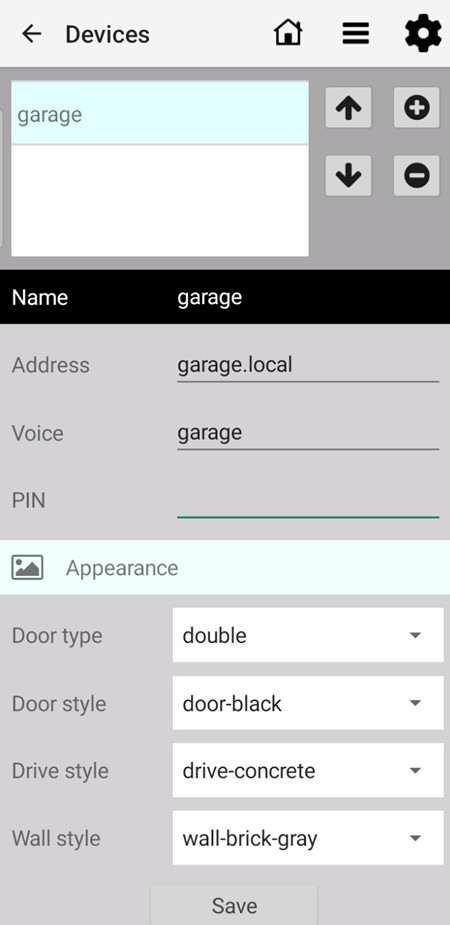
This page changes the individual device settings and allows you to add or remove devices. There will always be one device shown.
Devices
A list of your devices is shown, click to select.
- Move device up the list
- Move device down the list
- Add a new device
- Remove selected device
Device
Click to change the text.
- Name: the device name
- Address: the address used to connect, normally garage.local, it should match your device name.
- Voice: the word used to access the device with voice
- PIN: extra security if set on the device (see installation)
Appearance
These change the appearance of the device on your home page to match the physical thing.
- Door type: double, single, door, gate
- Door style: various door pictures
- Drive style: pictures of drive areas
- Wall style: pictures of walls
Save Once changed, you need to click the Save button at the bottom (if will show red if you have made changes).
Home menu
There are more advanced features on the home page once you choose to enable them.
Voice allows you to control devices hands free, simply enable the voice setting and use the voice commands you have set like ‘garrie door’. Garrie will understand most simple English commands.
Proximity will activate a device automatically upon return – it needs to lose connection to a device then, when it can see it again it activates it with a countdown to warn you. Note: make sure you have tested this feature thoroughly before using it. It could possibly open a door unexpectedly.
The home page has its own menu bar. This shows:
- Information on devices and actions
- Proximity button is enabled
- Voice button if enabled
This example shows:
Different door types, styles and textures
Voice and proximity enabled but not in use
Two devices garage and door
The Wi-Fi button is showing available on garage and unavailable on door (meaning the device ‘door’ is out of range)
Voice Control
This needs to be enabled in the settings menu to appear here.
Pressing the voice button will case Garrie to listen to you. Press again to cancel.

Proximity
This feature needs to be enabled in settings and works when you go away from your property and then come back (for example returning from shopping). Pressing will toggle proximity on and off. You can set proximity when away as well.
